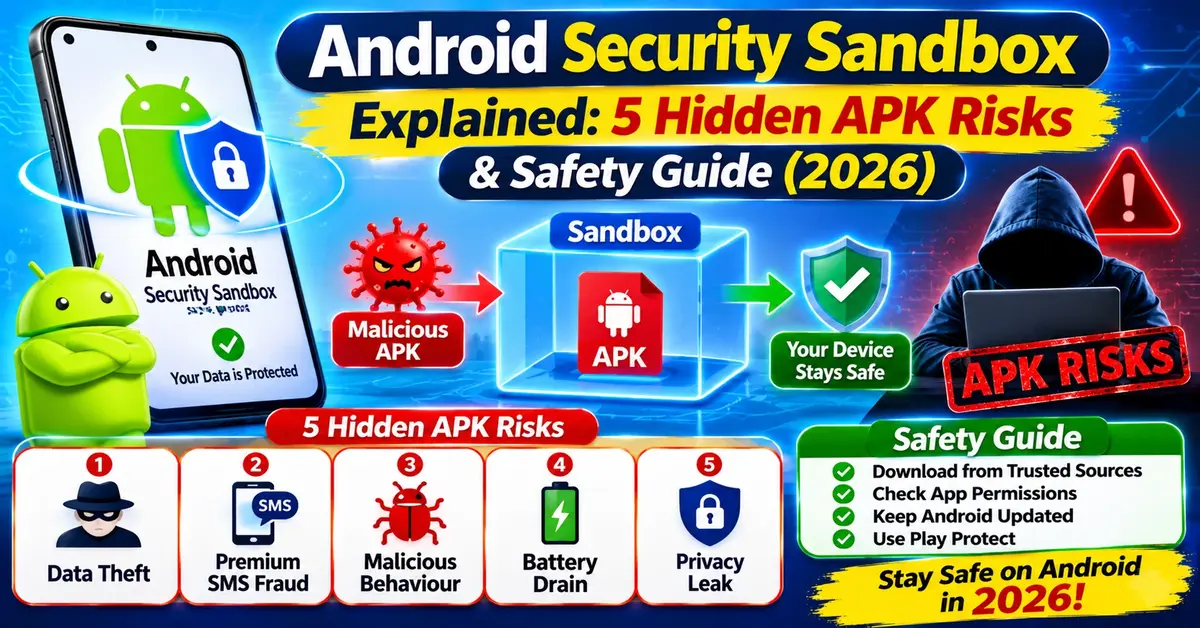
The Android Security Sandbox is a built-in safety system inside Android. It locks every app in its own private space using a unique Linux User ID (UID)—a special number the phone’s core system uses to tell apps apart. By default, one app cannot read another app’s data, touch system files, or spy on your phone. An app can only get past this wall if you tap “Allow” on a permission prompt or if a rare bug breaks the Linux kernel, which is the core engine of Android (Android Open Source Project).
Key Takeaways
- App-level isolation: Android gives every installed app its own unique UID and runs it in a separate process. By default, apps cannot read each other’s private files (AOSP).
- Different from Privacy Sandbox: The Android Security Sandbox protects your phone from harmful apps. In contrast, Google’s Privacy Sandbox on Android is an ad-privacy system that limits how apps track you for ads (Privacy Sandbox).
- Permissions act like open doors: A fake APK does not need to “hack” your phone’s core system. If you grant risky permissions like READ_SMS, BIND_Notifications, or Accessibility, the app can read your data directly.
- Special Play Protect defence in India: Google Play Protect in India uses Enhanced Fraud Protection. It automatically blocks APK files downloaded from the internet if they ask for four high-risk permissions often used in bank scams (Google India Blog).
- Act fast after fraud: If a fake APK puts your bank or UPI account at risk, call India’s National Cyber Crime Helpline at 1930 right away.Additionally, make sure to register a complaint on the cybercrime.gov.in portal.
Introduction
Almost every week, smartphone users in India get WhatsApp messages or SMS links about an unpaid RTO e-Challan, a bank KYC update, or a wedding invitation. Many of these messages include an .apk file instead of a normal link. You might wonder: does Android’s built-in security stop these fake apps on its own?
Android does lock every app inside a strong system called the Android Application Sandbox. Still, you need to know what this sandbox blocks and what it lets through when you tap “Allow”. This matters even more if you use UPI, mobile banking apps, or DigiLocker on your phone.
What Is the Android Security Sandbox?
In simple terms, the Android Security Sandbox is a digital wall around every app on your phone.
Think of your smartphone like an apartment building. Every app lives inside its own locked flat with its own key. One app cannot walk into another app’s flat to read its messages, steal its login details, or change its files (AOSP).
Security Sandbox vs. Privacy Sandbox: Do Not Mix Them Up

Many articles confuse two completely different Google tools. Here is how they differ:
| Feature | Android Application (Security) Sandbox | Privacy Sandbox on Android |
|---|---|---|
| Main Goal | Separates apps from each other and the system to stop malware and data theft (AOSP) | Limits ad tracking across apps and replaces the Google Advertising ID (GAID) (AppsFlyer) |
| Where It Works | Linux kernel, SELinux, and phone file system | Advertising tools (Topics, Attribution, Protected Audiences) |
| Who Needs to Know It | Every Android user and app developer | Marketers, ad networks, and app publishers |
How the Android Security Sandbox Works
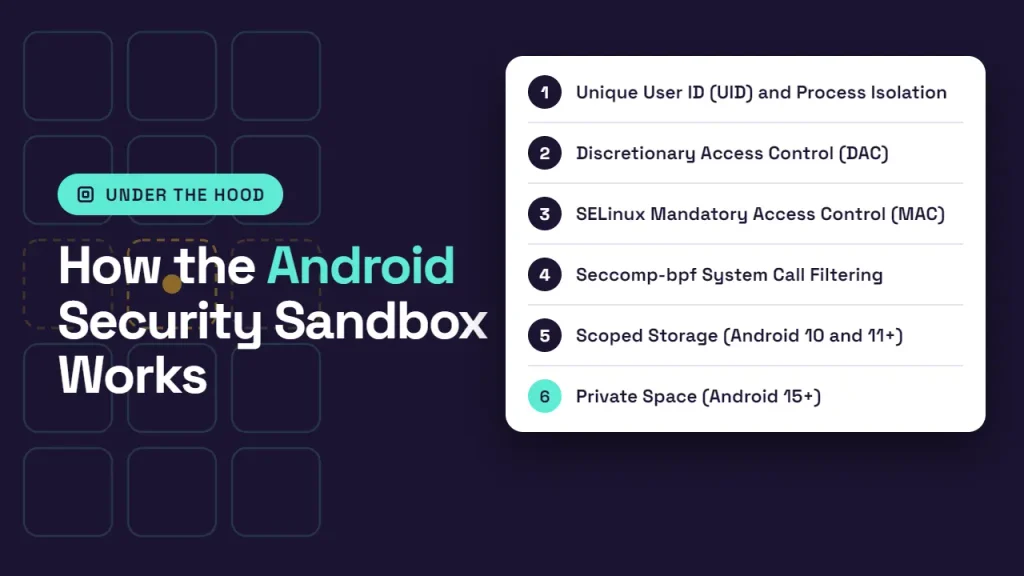
Android protects apps using several safety layers built right into the operating system (AOSP):
- Unique User ID (UID) and Process Isolation: When you install an app, Android gives it a unique Linux UID and runs it in its own separate space. Because this happens at the Linux kernel level, it protects both standard Kotlin/Java apps and apps built with native C/C++ code (AOSP).
- Discretionary Access Control (DAC): DAC is a basic file-locking rule. By default, an app’s home folder uses strict UNIX-style file rules (code 700 for apps built for Android 7.0 / API 24 and newer). This means only that specific app’s UID can read or change its private files (AOSP).
- SELinux Mandatory Access Control (MAC): Since Android 5.0, Security-Enhanced Linux (SELinux) has added strict rules between apps and system tools. Starting with Android 9 (targetSdkVersion >= 28), every regular app runs in its own SELinux sandbox and cannot share its private files with everyone (AOSP).
- Seccomp-bpf System Call Filtering: Added in Android 8.0, seccomp-bpf limits which commands an app can send to the Linux kernel. This gives attackers fewer ways to target the core system (AOSP).
- Scoped Storage (Android 10 and 11+): Apps can no longer look through your entire phone storage (/sdcard/). Instead, an app can freely view only its own folder and the photos or files it created. To open other shared photos or documents, it must go through Android’s MediaStore or the system file picker (ACTION_OPEN_DOCUMENT) (Android Developers).
- Private Space (Android 15+): Newer Android phones also offer Private Space. This is a separate, locked profile where you can hide sensitive apps—like banking or finance apps—away from your main home screen, notifications, recent apps list, and other apps (AOSP Private Space).
Android App Permissions and File Access Explained
If the sandbox is so strict, how do trusted apps like WhatsApp, Zomato, or BHIM use your camera, contacts, or photos?
They use Android Runtime Permissions. When an app needs data from outside its sandbox, Android shows a pop-up asking for your permission. On modern phones (Android 11 and newer), you can give one-time permission for your camera, mic, or location. Android also removes permissions automatically if you have not opened an app for a few months (Android Developers).
High-Risk Permissions to Watch Closely
Unknown APK Risks: Is Installing APK Files Safe?
An APK (Android Package) is simply the installer file Android uses for apps. Installing an APK from outside the Google Play Store—called sideloading—is not illegal or always harmful. Some genuine developers share apps this way.
However, installing unknown APK files from WhatsApp forwards, Telegram channels, SMS links, or random websites is one of the biggest phone security risks in India.
Why Sideloaded APKs Are Risky Even With a Sandbox
- You skip Play Store checks: Apps on Google Play go through automated scans and human reviews. Random .apk files on the internet skip these checks. According to Google’s study of major financial-fraud malware families that abuse sensitive permissions, over 95% of installs came from internet sideloading—such as web browsers, messaging apps, and file managers (Google India Blog).
- Tricking you replaces hacking: A fake APK does not need to break the Linux sandbox. Instead, Indian banking Trojans—like the fake RTO/e-Challan apps flagged by CERT-In and fake credit-card apps—trick you into turning on SMS, notification, and Accessibility permissions yourself (CloudSEK).
- Hidden call forwarding and droppers: Recent banking malware targeting Indian banks also tries to switch off Play Protect, steal gallery photos, and dial USSD codes (special network dial codes) like **21*<number># to send your bank verification calls to scammers (CloudSEK).
Google Play Protect and Android’s Malware Defences in India
To fight sideloading scams, Google and Android have built several protections that target permission abuse:
- Google Play Protect Scanning: Play Protect checks apps on the Play Store before you download them. It also scans your phone regularly for harmful apps from any source—checking over 200 billion apps every day worldwide (Google Support, Google India Blog).
- Enhanced Fraud Protection in India: Google launched Enhanced Fraud Protection in India to automatically block internet-sideloaded APKs (from browsers, chat apps, or file managers) if they ask for any of four permissions often used in financial scams: RECEIVE_SMS, READ_SMS, BIND_Notifications, and Accessibility (Google India Blog).
- Android 13+ Restricted Settings: Starting in Android 13, sideloaded apps cannot turn on Accessibility Services or Notification Listener access by default. A user has to go into App info and manually turn on Allow restricted settings (CleanBrowsing, Esper).
- Verified Developer Checks (2026–2027 Rollout): Google started enforcing Android developer verification for apps installed outside Google Play in select markets in September 2026, with a global rollout planned for 2027 (Android Developers Blog, SimGate).
How to Spot and Remove Harmful Android Apps
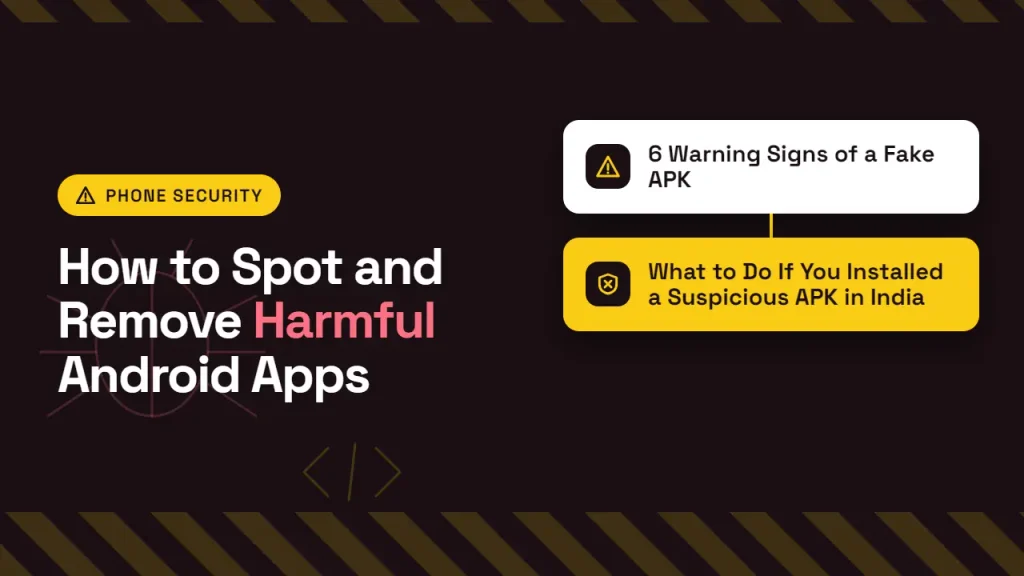
6 Warning Signs of a Fake APK
Sent Through Chat or SMS
You receive a traffic challan, courier update, or bank KYC message containing an APK attachment or download link instead of directing you to an official website or app store. Treat unexpected APK files as suspicious.
A simple PDF viewer or challan receipt app asks for sensitive access such as SMS, Accessibility, or Device Admin permissions without a clear reason. This is a major warning sign.
Asks You to Disable Play Protect
A website, caller, or installation guide tells you to turn off Google Play Protect or enable restricted settings for an unknown app. Do not follow these instructions just to install an APK.
Missing or Blank App Icon
An unfamiliar app has a blank icon, an unusual name, or does not appear where you expect in the app list. Some malicious apps may try to make themselves harder to notice.
Unexpected Battery Drain or Heating
Your phone suddenly uses more battery, processing power, or mobile data after installing an unknown app. Background activity may be one possible cause, although normal app updates and other issues can also cause these symptoms.
Unknown Accessibility Services
You find an unfamiliar app enabled under Settings > Accessibility. Untrusted apps with Accessibility access may be able to observe or interact with parts of your phone’s interface.
What to Do If You Installed a Suspicious APK in India
If you suspect that an unknown APK is harmful, take these precautions promptly. Menu names can differ between Android brands and versions.
Disconnect from the Internet
Turn on Airplane Mode and switch off Wi-Fi if necessary. This can interrupt network communication while you assess the situation.
Review Sensitive Permissions
Check Settings > Accessibility and Security > Device admin apps. Disable access granted to an unfamiliar app if your phone allows it.
Uninstall the Suspicious App
Open Settings > Apps, locate the unfamiliar app, and try to uninstall it. If removal is blocked, seek help from a trusted technician or your phone manufacturer.
Check Call Forwarding
Review your phone’s call-forwarding settings and contact your mobile operator if you find an unauthorised rule. The code ##002# may cancel forwarding settings on some networks, but availability varies by operator.
Run a Play Protect Scan
After securing the device, open Google Play Store > Profile icon > Play Protect > Scan and follow any recommended actions.
Report Financial Fraud Immediately
If money has been lost or your banking details may be compromised, contact your bank immediately and report the incident through India’s cybercrime reporting channels.
Call the national cybercrime helpline at 1930 as soon as possible and submit a complaint at cybercrime.gov.in. Contact your bank to secure affected accounts, cards, and UPI access.
Frequently Asked Questions (FAQ)
1. What is the Android Security Sandbox in simple words?
The Android Security Sandbox is a built-in safety system that gives every app its own unique Linux User ID (UID) and private folder. It stops apps from reading each other’s data or changing phone settings without your permission (AOSP).
2. Can a sideloaded APK bypass the Android Security Sandbox?
An APK cannot easily break the Linux kernel sandbox on an updated, unrooted phone. However, it does not need to. If you manually grant it permissions like READ_SMS, BIND_Notifications, or Accessibility, it can read your OTPs and screen content legally through Android’s own tools (Google India Blog).
3. Is it safe to install APK files on Android in India?
Installing APKs from unknown WhatsApp, Telegram, or SMS links is unsafe. Google found that over 95% of major fraud malware families that abuse sensitive permissions came from internet sideloading (Google India Blog). Stick to the Google Play Store or trusted official websites.
4. Why does Google Play Protect block some APKs in India?
Under Google Play Protect’s Enhanced Fraud Protection in India, Android automatically blocks internet-sideloaded APKs if they ask for permissions commonly used in financial scams—specifically RECEIVE_SMS, READ_SMS, BIND_Notifications, and Accessibility (Google India Blog).
5. What is “Restricted Settings” in Android 13, 14, and 15?
Restricted Settings is a safety feature that blocks sideloaded apps from using Accessibility Services and Notification Listener tools by default. You should never turn this off manually for an unverified app (CleanBrowsing).
Final Takeaway
The Android Security Sandbox is one of the strongest built-in defences on any phone, locking every app at the Linux kernel level. Still, no sandbox can protect you if you hand over the keys yourself. Keep Google Play Protect turned on, never install .apk files from WhatsApp or SMS links, and keep your banking apps on an updated Android phone—using Private Space if your device supports it.
Read This Also:
EPF e-Passbook 2026: Check Balance, Download PDF & Fix Login Errors
1 thought on “Android Security Sandbox Explained: 5 Hidden APK Risks & Safety Guide (2026)”